Git Basics - The Components
Table of Contents
While many developers use Git daily, understanding its core components can feel overly abstract. In this post, we will explore the fundamental building blocks of Git: Repositories, Commits, the Staging Area, Branches, and Merges.
Repository⌗
In layman’s terms, a repository is simply a folder containing all your project files alongside their entire change history. It consists of your actual source code (your working directory) out in the open, plus a hidden .git folder where Git keeps all of its internal tracking mechanisms.
Whenever you initialize a new Git project or clone an existing one, it is this .git directory that transforms a normal folder into a Git repository.
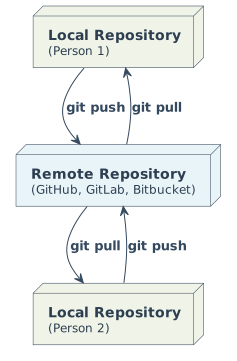
Repositories generally exist in two places:
- Local repository: The repository on your personal computer. This is your private workspace where you do your daily work.
- Remote repository: A synchronized backup of your repository hosted on a server on the internet (like GitHub or GitLab). It acts as a central hub so you and your team can share your work.
You use operations like clone, push, and pull to sync the timeline of your Local repository with the Remote server.
Commands:
git-init,git-clone,git-remote,git-push,git-pull,git-fetch
Staging Area⌗
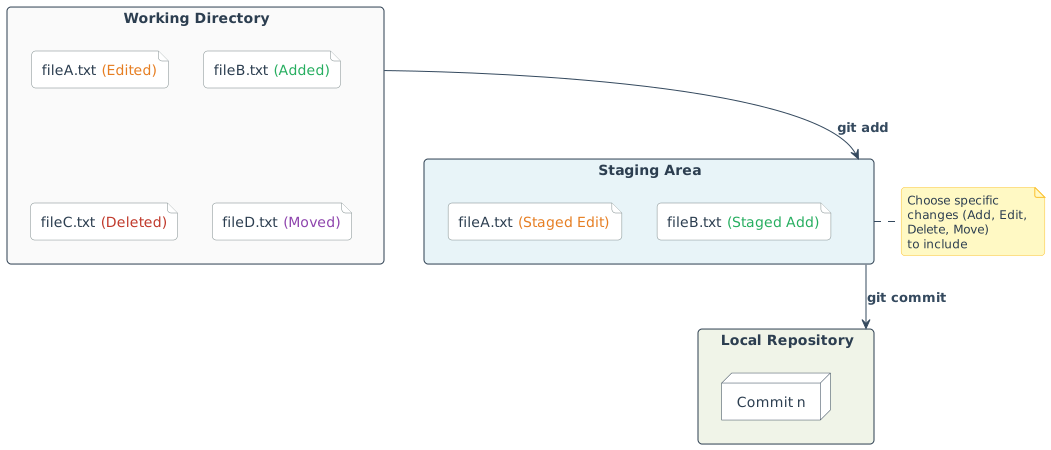
The Staging Area is a place where you choose which edits you made are ready for a commit.
When you modify files in your working directory, Git sees them as unstaged changes. Before you can commit them, you must explicitly stage the exact changes you want to include. These changes can be of several types:
- Add: Creating a completely new file.
- Edit: Modifying the contents of an existing file.
- Delete: Removing a file from the repository.
- Move / Rename: Changing a file’s location or its name.
By separating the working directory from the commit history, the staging area allows you to craft focused, logical commits instead of bulk-saving everything you’ve touched.
Commands:
git-add,git-rm,git-mv,git-reset,git-status,git-diff
Commit⌗
A Commit is a snapshot of the repository, but in layman’s terms, it is simply a detailed record of edits. Think of it as an entry in a strict accounting ledger.
Instead of just saving the final state of a file, a commit tracks exactly what happened:
- Which files were changed.
- Exactly what lines were added, edited, or deleted.
- Who made the change (the author).
- When the change was made (the timestamp).
- A reference to the previous commit, creating an unbroken, chronological chain of history.
Because every commit links back to the one before it, you can always trace the exact evolution of your project line by line, or easily undo mistakes. You can see these ledger entries by looking at the commit history:
$ git log --stat

commit 7b1c4a9d8f3e2a1b5c6d7e8f9a0b1c2d3e4f5a6b
Author: trviph <[email protected]>
Date:   Wed Feb 28 10:45:12 2026 +0700

    feat: write first post

 content/en/posts/git-1.md | 95 ++++++++++++++++++++++++++++++
 static/img/git/staging.svg |  1 +
 2 files changed, 96 insertions(+)
Commands:
git-commit,git-log,git-show,git-revert
Branching and Merging⌗
A Branch represents an independent line of development. Technically speaking, a branch is simply a pointer to a specific commit where your history diverges from the main timeline.
When working on a feature or fixing a bug, you create a branch to isolate your work. This allows multiple people to work on the exact same codebase simultaneously without stepping on each other’s toes.
Once your isolated work is complete, that branch needs to be reintegrated into the main project. Merging is the process of taking the divergent history of your branch and combining it back into a single, unified timeline.
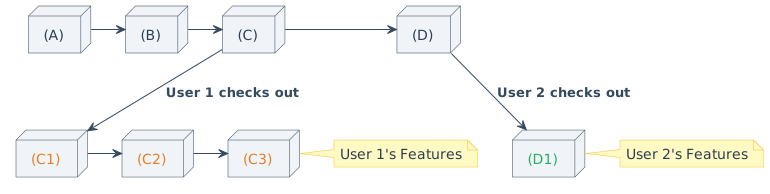
Consider the following scenario where two users branch off from the main project:
- The project has an initial linear history of commits
A -> B -> C. - User 1 checks out a new branch at commit
Cand makes three commits:C1,C2, andC3. - Meanwhile, the main timeline receives a new commit
D. - User 2 checks out a new branch from
Dand makes commitD1.
Commands:
git-branch,git-checkout,git-switch,git-merge,git-rebase
Now, when these branches are ready to be merged back:
- User 2 finishes first and merges
D1back into the main timeline. - User 1 finishes later and merges
C1,C2,C3back after User 2’s merge.
The resulting main timeline becomes: A -> B -> C -> D -> D1 Merge -> C Merge. Each merge commit ties the branch’s history back into the main line.
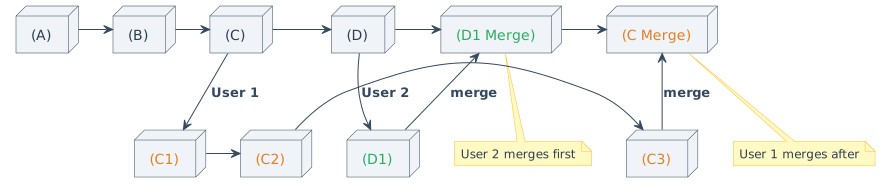
When we flatten the tree, the full commit history on main now reads as a single linear timeline:

Notice how every commit from every branch is now visible in one straight line. This is the power of Git’s merge: no work is lost, and every edit is traceable back to exactly who did it and when.
Merge Conflicts⌗
A merge does not always go smoothly. When two branches modify the exact same lines of the same file, Git cannot automatically decide which version to keep. This is called a merge conflict.
When a conflict occurs, Git will pause the merge and mark the conflicting sections in the file. You must manually choose which edits to keep, then stage and commit the resolution. Only after this does the merge commit get created.
Conflicts are common and normal. They are not a sign that something went wrong, they simply mean two people edited the same thing at the same time.